eSIM Activation Process
Follow this guide to activate your SimFlyHola eSIM quickly and correctly.
Before You Start
Requirements
- An eSIM-compatible device (iPhone XS or later, Samsung Galaxy S20 or later, Google Pixel 3 or later)
- A device that is unlocked for international use
- A stable Wi-Fi connection during installation
- Your SimFlyHola QR code (sent to your email after purchase)
- Sufficient battery (at least 20%)
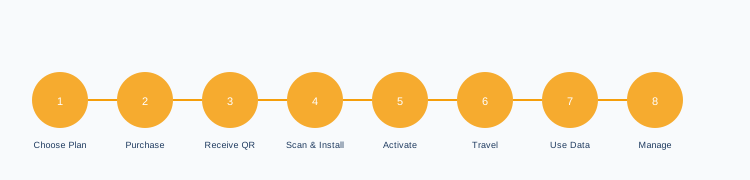
Step-by-Step Activation
-
1
Purchase your eSIM plan
Browse our pricing page and select the plan that suits your trip. Complete the checkout process using your preferred payment method.
-
2
Receive your QR code
Within seconds of completing your purchase, you will receive an email from [email protected] containing your eSIM QR code. Check your spam folder if you do not see it within 10 minutes.
-
3
Open your device's SIM settings
On iPhone: go to Settings > Mobile Data > Add eSIM. On Android: go to Settings > Connections > SIM Manager > Add eSIM.
-
4
Scan the QR code
Point your device's camera at the QR code in your email. The eSIM profile will be downloaded automatically. This requires a Wi-Fi connection.
-
5
Label and configure your eSIM
Give your new eSIM a label (e.g. "Travel eSIM"). Set it as your preferred data line in your dual-SIM settings. You may wish to keep your home SIM active for calls and texts.
-
6
Activate on arrival
When you land at your destination, enable mobile data on your device. Your eSIM will connect to the best available local network automatically. The plan validity begins from first use.
-
7
Monitor your data usage
Check your remaining data in your device's settings under Mobile Data. Disable background app refresh to conserve data.
-
8
Top up if needed
If you run out of data, purchase a new plan from our pricing page. Your new QR code will be delivered instantly.
iOS Activation Guide
- Open Settings on your iPhone.
- Tap Mobile Data (or Cellular in some regions).
- Tap Add eSIM or Add Data Plan.
- Select Use QR Code and scan the code from your email.
- Tap Continue and follow the on-screen instructions.
- Label your eSIM (e.g. "Travel") and tap Done.
- Go to Mobile Data > Mobile Data and select your travel eSIM.
- Enable Data Roaming if prompted.
Android Activation Guide
Steps may vary slightly depending on your device manufacturer and Android version.
- Open Settings on your Android device.
- Go to Connections (or Network & Internet).
- Tap SIM Manager (or SIM cards).
- Tap Add eSIM or the + icon.
- Select Scan QR code and scan the code from your email.
- Follow the on-screen instructions to complete installation.
- Set the eSIM as your preferred data connection.
- Enable Data Roaming in your mobile network settings.
Troubleshooting
My QR code is not working
My eSIM is installed but not connecting
I accidentally deleted my eSIM
After Activation
Once your eSIM is active, you can use it like any mobile data connection. Here are some tips to get the most from your plan:
- Disable automatic app updates to avoid consuming large amounts of data.
- Use Wi-Fi whenever available to preserve your data allowance.
- Download offline maps (e.g. Google Maps) before your trip.
- Set your streaming apps to lower quality when using mobile data.
- Check your remaining data regularly in your device settings.